
Overview Importing Data Directory Tree File Management Processing Bird Detection Saving Data Synthetic Bird Song Download & Install ... Home
Importing Data
Changes in Version 3.0
Prior to Version 3.0, the WAV files were loaded into memory and all processing was kept in memory. At the end of processing session the data had to be saved back to disk in order keep the data.
In Version 3.0, the data is always accessed directly from disk file and is not kept in the PC memory. This makes the file management simpler in that the user doesnt have to be concerned about saving the data back to disk.
All the metadata is now kept in a catalog database file instead of using sidecar files. Every directory has it's own indivdual "birdwave_catalog.db" file. This catalog method is similar to the way that Adobe Lightroom works with image files.
Every directory folder will have it's own catalog file.
The catalog file (birdwave_catalog.db) must stay together with all the *.WAV files in the same directory, since this catalog stores the metadata for the *.WAV files. Do not delete this catalog file.
An Example Workflow in Version 3.0
- Create a new project folder using the Windows File Manager
- Copy the *.WAV files to be imported/analysed/edited to this folder.
- Startup the BirdWave App. Click on "File -> Select Wav Files Folder" in the main menu and select the newly created folder.
- During import, these files will have some minor pre-processing applied, then renamed to a standard filename used within this app.
- The files will be scanned automatically, and appear in the directory tree in the App.
- If the species was not determined from the filename during import, then the files will be listed under "Import" in the directory tree.
- Click "File -> Update Location Information" to add location information for the files just loaded.
- Click on the file name in the directory tree to view the waveform and spectrogram.
- Right-click on the same item, select "Change Species" to assign it to the correct species.
- Right click again and select the "Crop" processing option, and crop the waveform as desired.
- Click the "Play" button to listen to the bird song.
Note that if the WAV files to be imported have a sidecar TXT file (from either from the BirdNET mobile app or from earlier versionn of BirdWave), then the information from the TXT will be read into the catalog, then the TXT file will be deleted from this project folder.
Importing WAV data.
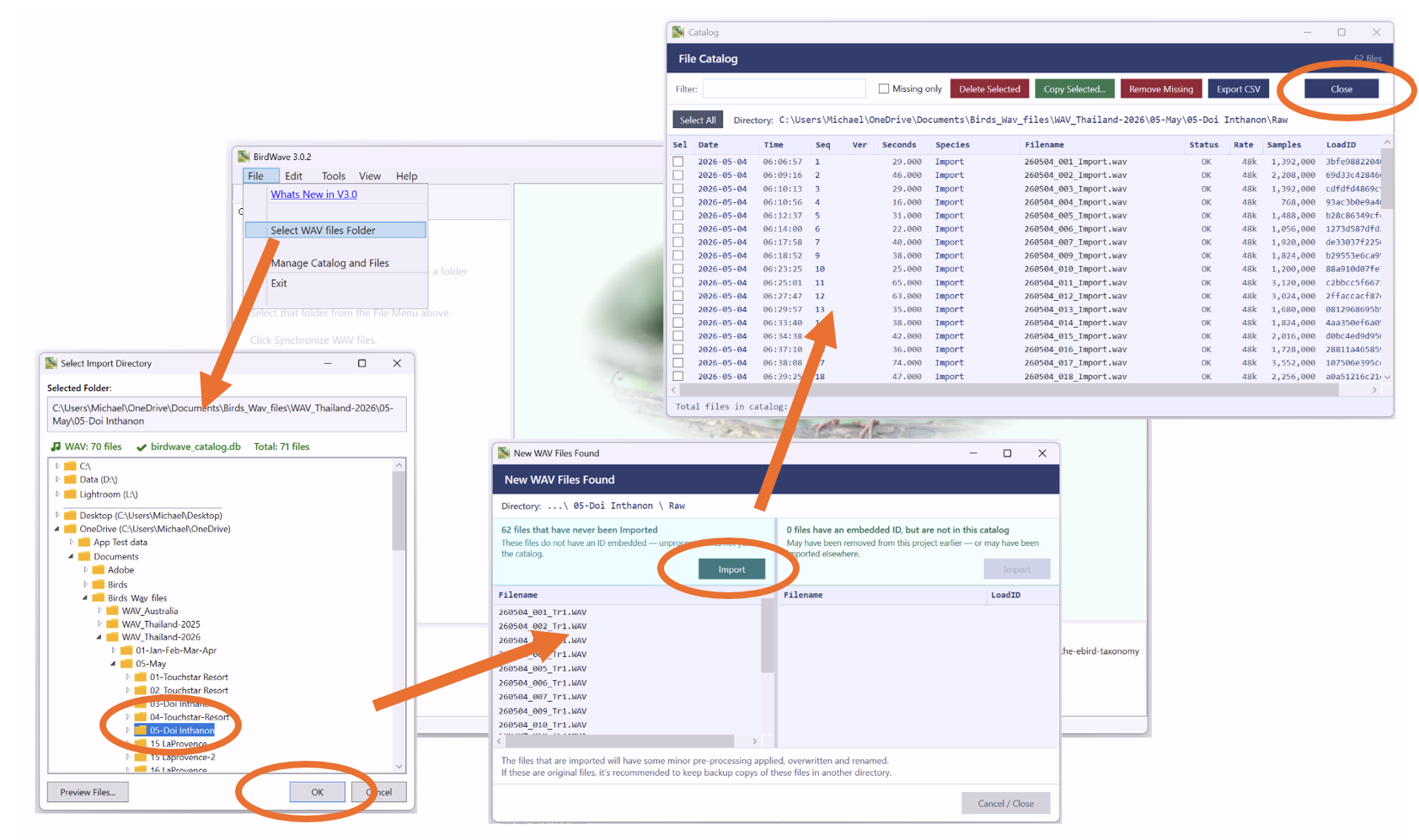
Files are Imported from the Main Menu under the "File" tab on the top left as shonw in the figure below.
When the "Select WAV Files Folder" item is clicked, a Folder Selection window will pop up. Use this to select the folder with the new WAV files for Import. Upon clicking OK, a window will pop up showing the WAV files in this folder, and clicking "Import" will then import these files into the Catalog, after which the Catalog Window will show. Close the Catalog window to return back to the main window.
The Import operation will apply some minor pre-processing to the WAV file and rename the file to standard filename used with-in this app. So it's recommended that you keep backups of original files somewhere else, prior to Import.
Most bird song recordings will be made on another recording device or mobile phone, so these will first need to be copied to the PC. My examples have been recorded on either Tascam or Zoom Recorder, or an Android phone using either the BirdNET or Merlin apps, plus several other sound recording apps. BirdNET provides a 16 bit single channel WAV file, while Merlin provides a 32 bit single channel WAV file, both at 48 kHz. Both Tascam and Zoom use 32 bit recording at either 48 or 96 kHz..
WAV files recorded by any device should be loadable. If the data is recorded in stereo, then only the left channel is importeded (at present).
There is an option in the tools menu to convert MP3 to WAV. Note that MP3 is a compressed and lossy format, so it should be avoided whenever possible. Converting from MP3 to WAV will increase the file size by a factor of 10, so that's a good indication that signal has been lost by recording in MP3. Converting MP3 to WAV will not recover the lost information.
The maximum amplitude recorded over the entire file is determined during file import, and the amplitude (volume) is adjusted upon import to either -3dB (default) or -10dB, depending the parameter chosen.
Three variations of WAV that can be imported are:
- Standalone WAV files that dont have any bird species or recording date information available.
- WAV files that contain some date or species information embedded in the filename.
- WAV files that have a text formatted sidecar file that contains recording information and interpreted Bird species name. Files exported from the Birdnet app or files saved by this App will have this sidecar file.
Standalone File. When such a file is imported, the recording date and species information is not available in the file. The species name needs to be supplied manually, either during import, or by moving to the correct species folder after importing. If no species name is provided, the data will assigned to the "Unknown" folder. After loading, the recording date should be added.
File recorded by the BirdNET app. An accompanying sidecar text file with the same name as the WAV file should be available and it will also be automatically read. This sidecar file contains the identified species names and some location information. Since the species is known, then the data is automatically assigned to a corresponding Order -> Group -> Species folder.
Files with information in the Filename. If the format of the information embedded in the filename is known, then it is possible to extract this information during import. Filename formats that are supported for date extraction include:
- yyyy-MM-dd HH-mm.wav
- yyyy-MM-dd HHmmss location.wav (location is variable length string)
- yyyyMMdd_HHmmss.wav
- yyMMdd-HHmmss.wav
- yyMMdd-sequence.wav
- yyMMdd-sequence-track.wav(Zoom devices)
- yyMMdd_sequence.wav
- yyMMdd_sequence_track.wav (Tascam devices)
- yyMMdd_sequence_xxxxxx.wav
- xxxxxx_yyyyMMdd.wav
- birdnet_mobile_user_recording_sequence.wav
- species_sequence.wav (only if the species extracted is a valid name, then it will be used)
The items in blue are the supported date and time formats supported. The items in red font are additional fields that will be extracted. "xxxxxx" is a variable length text string. For these items to be extracted, the format must exactly match one of those in the list above.
For Zoom devices, sequence is an integers, track is an integer preceded by "Tr". For Tascam devices , both sequence & track are integers.
In addition, if the .WAV file is the raw file downloaded from the recording device, then the Windows field "Date Modified" is the date and time of the actual recording. The time value extracted from this field is added to the date determined from the filename. Note that this "Date Modified" field will change if the .WAV was saved from another App.
So the date can often be extracted from the file or filenames, but bird species name is not available. Specific requests to modify the App for reading user defined file name formats can be considered upon request.
After the WAV data has been imported, the data can be found in a directory tree of structure of Order->Group->Species. If the file has been loaded into the "Import" directory, or was previously incorrectly ID'ed, then it can be moved to it's correct place in the directory tree. Right click on the WAV data in the directory tree, to find the option to re-assign to another species.
When viewing in the Year->Month->Day directory tree, if the recording date is not known, then a default date of 1-Jan-2020 00:01 will be applied. This can be changed with the date / file info editing option, when right clicking on the WAV data in the directory tree.
After data import is completed, the waveform and spectrogram plots are displayed By default, the last imported dataset is displayed. To view the plots from other datasets, simply click on the Wav file name in the directory tree.
File Names after loading.
After Importing, the files are named with the following convention.
- yyMMdd_seq_species name.wav ... for an original imported file.
- yyMMdd_seq_species name_version.wav ... for a processed file.
An original import file is considered as Version 0, so the version number is not shown. After processing has been applied to that file, the date, sequence and species name are retained, and the version number is incremented, so as to give a unique filename.
Three items are required to give the WAV file a name that is consistent with the naming convention used within this App. These are Recording Date, File Sequence number and Species Name. In most cases the first two items can be extracted from the filename or sidecar file during load. Most likely, the Species will need to changed later after loading.
The Recording Date will default to 2020-01-01 00:01 if it could not be determined during import. You will then need to right click on the file and select "Edit Date / File Info" and select the correct date.
The File Sequence may also not be found during file import, and this case it will default to the FileID, which is an internal counter within the App that increments with each file imported, and independent of re-starting the App. If the File Sequence exists in the original filename, then it is expected that it will be found. The value of the file sequence will be used for sorting within a given Recording Date, so it should not repeat on any give day. But if it resets on subsequent days, then that will not affect the operation of the App.
The Species Name can be edited by right clicking on the file and select "Change Species". See the section further below on moving from Unknown to Species folder.
Assigning or Changing the Species Name
If the bird species cannot be found in the filename or a text sidecar file during load, then the data will be assigned to the Import Folder.
Later, after the species name has been determined, then in the main App window, Right-Click on the file and select "Assign to another Species". This will bring up a window that contains the eBird 2025 taxonmomy list, from which you can select the species. Enter the species name, or partial name in the search box and click search.
After finding the species in the list, click continue and the file will be moved to a directory corresponding to that species.
The Catalog Windows
BirdWave stores all the metadata of the WAV files in a catalog file. Each folder on disk has it's own catalog in a file named birdwave_catalog.db.
- The catalog file (birdwave_catalog.db) must stay together with all the *.WAV files in the same directory, since this catalog stores the metadata for the *.WAV files.
- It is possible to move the catalog and WAV files to another folder, but they should all be moved together.
- Every project directory will have it's own birdwave_catalog.db file that only references the WAV files in the same project directory.
There 3 options for the displaying the Catalog and all can be found under the "Main Menu -> File" item.
- Manage Catalog and Files
- Fix Recording Dates
- Update Location Information
The "Manage Catalog and Files" option is discussed below.
The "Fix Recording Dates" option allows to changes the recording dates in case they were not available or parsed from the imported files, or if the dates were in-correctly set on the recording device.
The "Update Location Information" option allows to set the Latitude, Longitude, Location and Country items for each waveform. Typically for a recording session, all the files will be assigned the same value. The Latitude and Longitude are required to get the best results from Bird Detection, so it's recommended to set the Lat/Lon immediately after the data has been loaded.
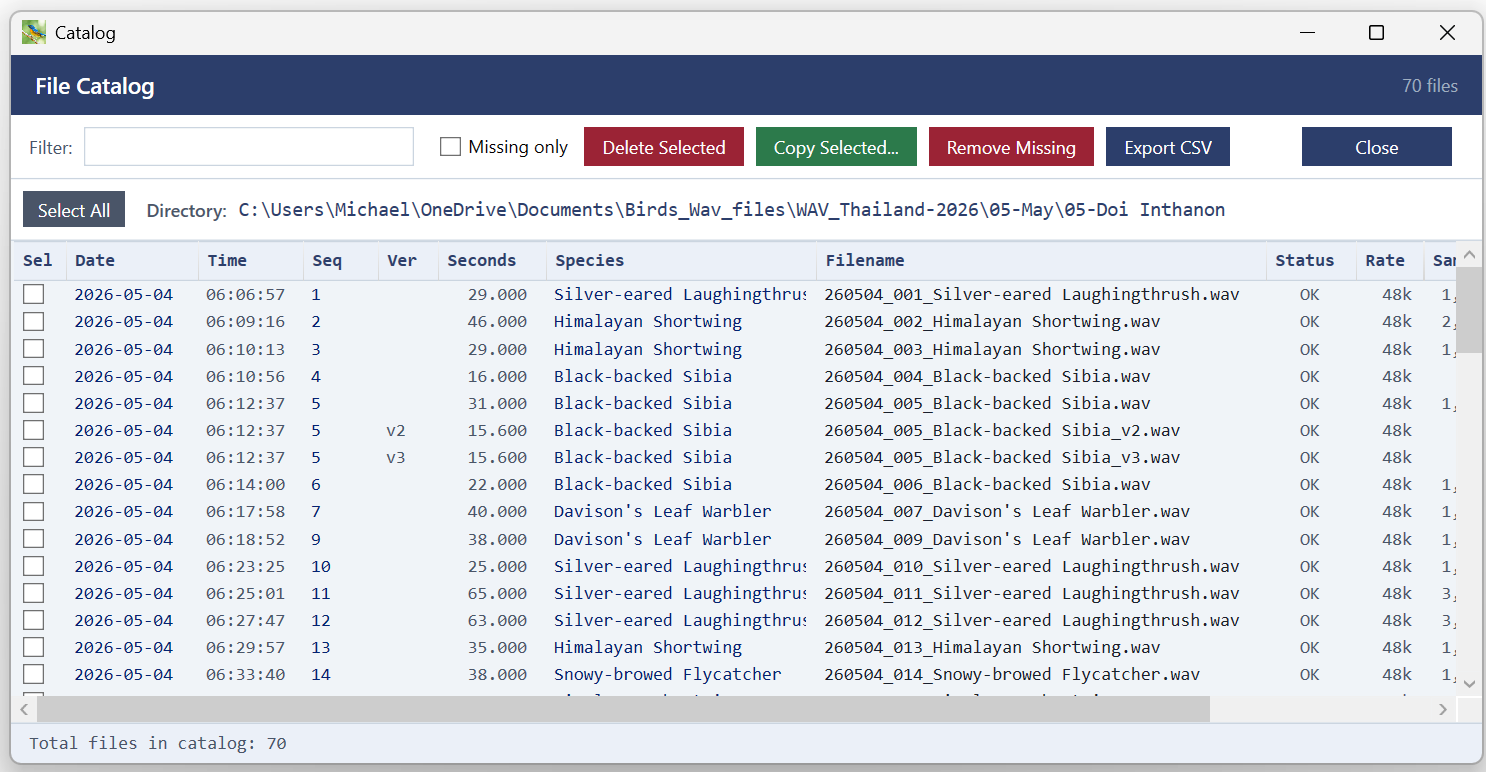
The Catalog Window displays the contents of the catalog in the current selected Project Folder and can be viewed by selecting Files -> Manage Catalog in the Main Menu. It will also appear after new data has been Imported.
It shows a summary of the all the WAV files in the Catalog. Files can be deleted or copied to another catalog by checking the check box to left of each file name, then clicking either the Delete or Copy button on th top.
The full information in the catalog can be downloaded with the Export CSV button.
If the catalog file is deleted or removed, then the metadata for each WAV file is lost, although some of the file information can be recovered from the file names.
Long Duration Files > 5 minutes.
Files that are greater than 5 minutes (300 secs) in length are split into separate files of 300 sec length during import. This is to assist in the plot rendering speed, plus long duration files can be cumbersome to work with anyway. Files can be concatenated back together using the concatenate process if the split ocurred across a portion of interest.
The split files will have the same names in the file manager, but with an A, B, C,... etc appended to the names.
Copying WAV files from an Android phone
To export both the TXT and WAV from from BirdNET app on the phone, first go the "Show Observations", then click on "Export Observations" in the upper right corner and the files will be exported to the Downloads directory on the Android device.
Moving files from a phone to the PC can be an annoying process. One of the best solutions I have found is the "KDE Connect" app. Install it on both phone and PC, and the WAV will silently appear in the Windows Download directory when sent from the phone. Both the PC and phone should be on the local WiFi network. When installing on the phone, ignore turning on the "Accessibility" options.