
Overview Importing Data Directory Tree File Management Processing Bird Detection Saving Data Synthetic Bird Song Download & Install ... Home
Navigating the Directory Tree
The directory tree can be viewed as either Order-Group-Species, or as Year-Month-Day ordering. Select the type of ordering required from the tab buttons on the top left.
The directory tree is composed of four levels. The first 3 levels are either Bird Order, Bird Group and Species name, or Recording Year, Month and Day depending on the ordering selected. The fourth level is the WAV dataset.
It is possible to switch back and forth between the two directory trees as required.
The following summary decscribes the Order-Group-Species directory tree, but the Year-Month-Day directory tree works the same way.
- Click on the dataset name to swap the waveform/spectrogram view to this dataset.
- Hover the mouse over the dataset name to view some more information.
- Right click on the dataset name to get a list of menu items for further processing and other options.
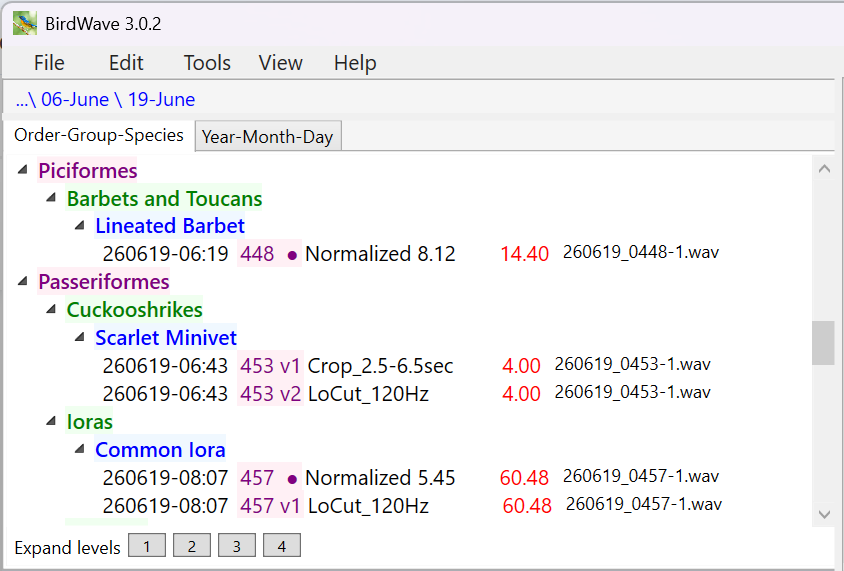
The entire directory tree can be expanded or contracted by clicking on "1", "2", "3" or "4" buttons as shown in the figure above. The number on the button corresponds to the number of levels to be expanded. Individual directory items can be expanded or contracted by clicking on the small arrowheads.
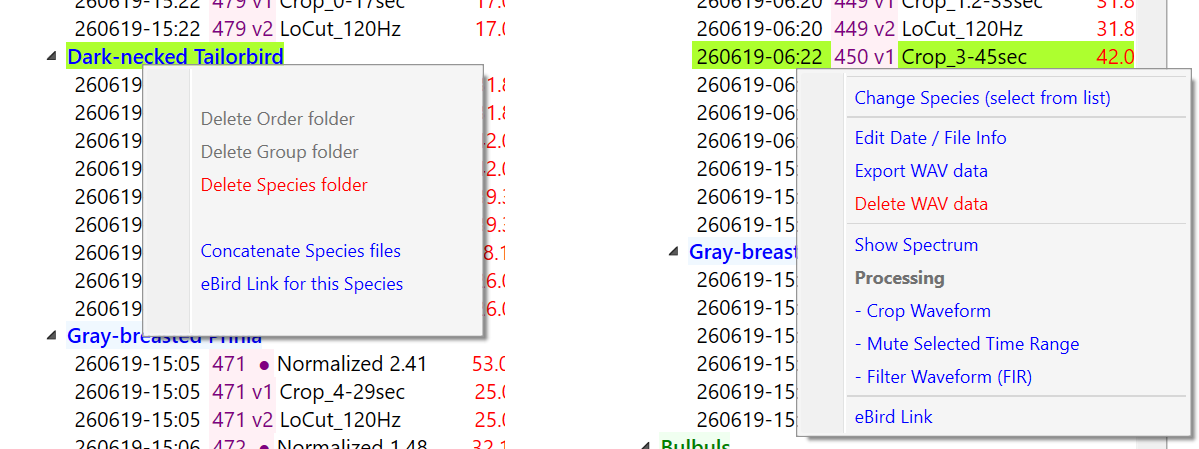
Right clicking on either of the Order, Group or Species (left figure) will display a menu with folder delete options and options to save all the datafiles that are under a selected Order, Group or Species tab.
Right clicking on the waveform data (right figure) will show processing options available. Use "Change species (select from List)" if the species is currently not correct, or if the data was loaded to a "Unknown" folder. Once a species change has been done and to assist with quickly changes other files of the same species, then look "Change Species (recent)"
Dataset naming and display.
During file loading, attempts are made to extract the recording date, the recording time and a file sequence number. For most common types of files, this data extraction should succeed and these three items are displayed in the directory tree list shaded by green, blue and magenta. A solid dot after the file sequence number indicates this direct load without any (known) processing applied.
Following this, a description of the last known processing is appended. In the case of a freshly loaded file, the normalization factor applied during load is shown. This value is an indication of the recording level .. a value close to 1.0 indicates a correctly set recording level. If the file being loaded is a reload of a previously saved file, then the normalization factor should be 1.0;
The duration of the recording in seconds is shown in red font, followed by the filename of the dataset. If the dataset has been processed, then the filename shown here is the filename of the original file loaded from which the processing is derived.
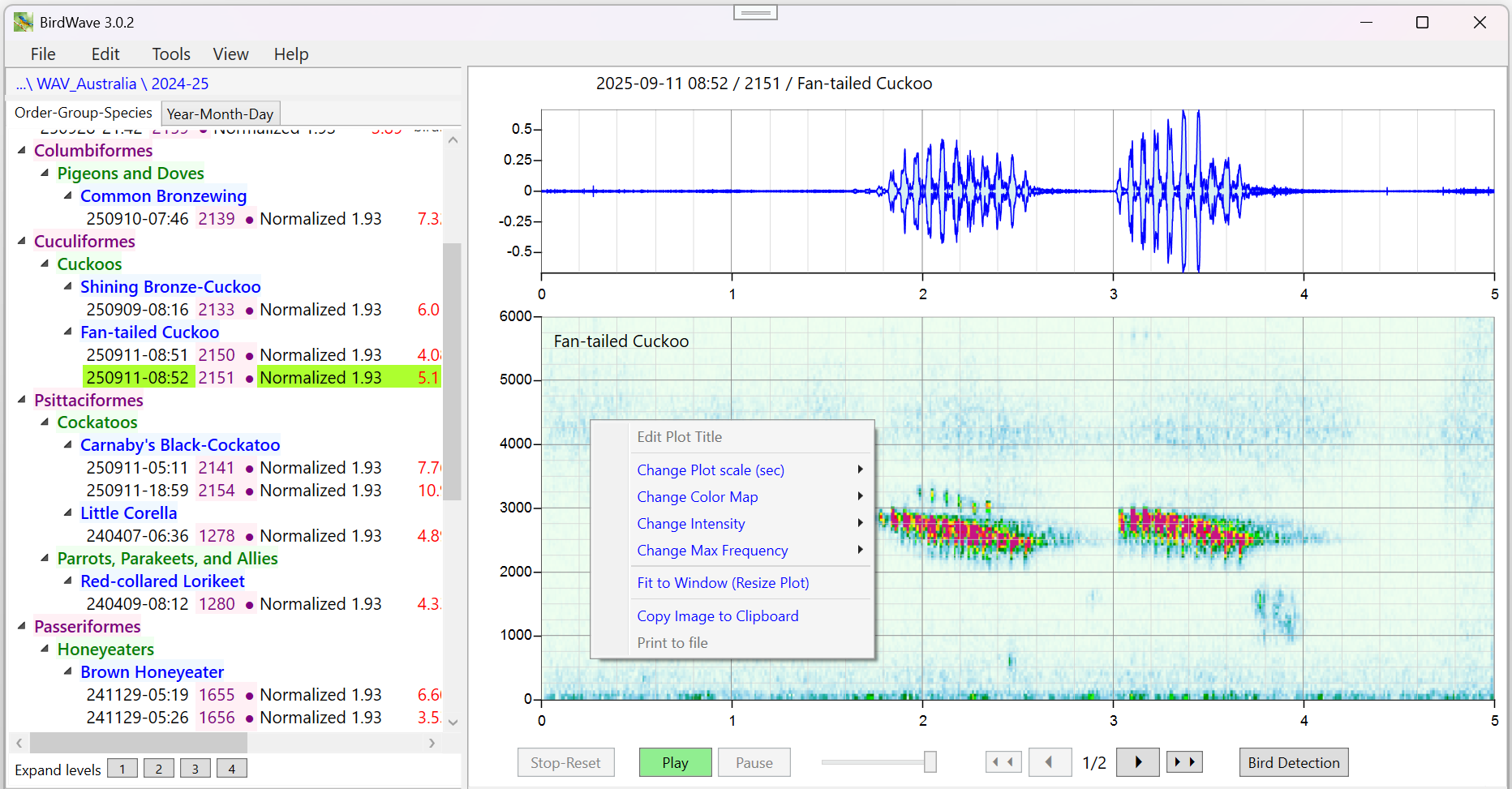
Some of the plotting parameters can be changed right-clicking on the image and a menu will appear. These parameters can also be changed in the Preferences in the Main Menu.